 Freelance Dog Walks
Settings, top to bottom
The Settings tab is the app's back room: your details, the money switches, the schedule's calendars, and the careful controls. Nothing in it is required — the app walks fine on defaults — but everything in it does one clear thing. Sections that onboarding already asked wear a chip; answering there or here is the same answer. This guide covers the iPhone app.
Walker in onboarding
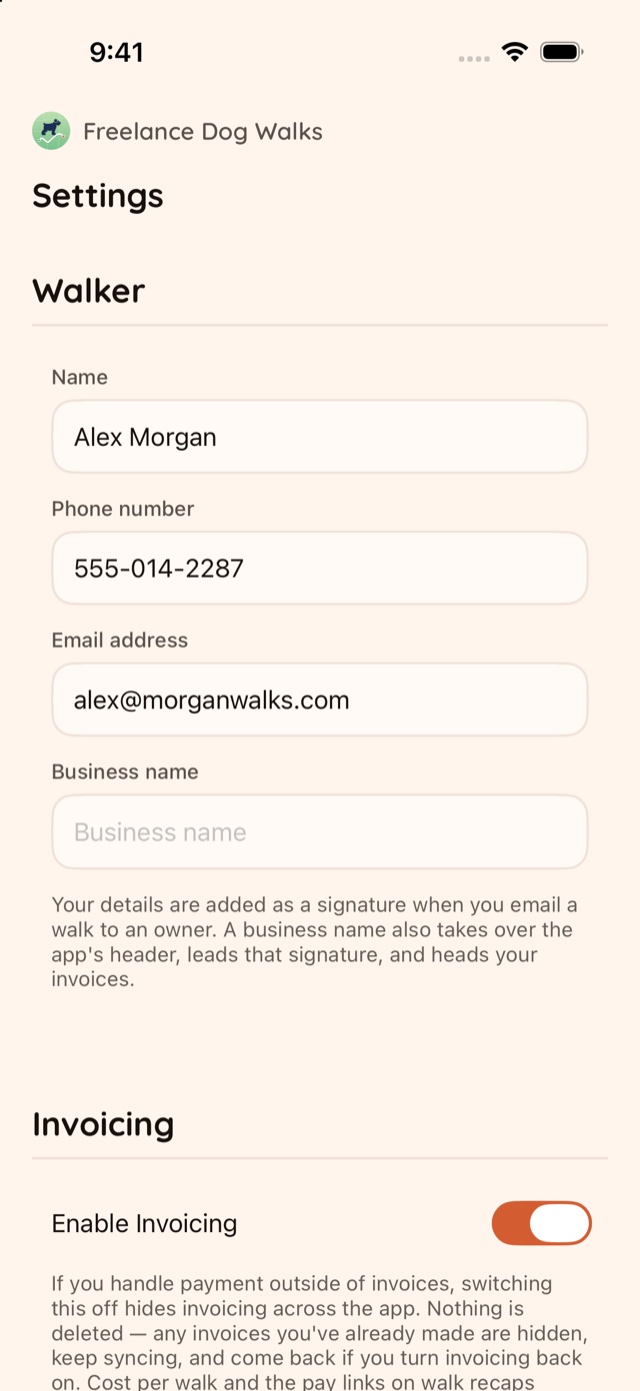
Who the recaps and invoices come from:
- Name, phone number, email address — your signature. When you email or text a walk to an owner, these sign it; when you send an invoice, they head it. Onboarding's About you step asks for these; leave any blank and the app simply signs with less.
- Business name — fill it and it takes over the app's header, leads the signature on every recap, and heads your invoices. Leave it empty and the app keeps its own name.
- Business website — rides along everywhere your business name goes: a tappable link in recap and invoice emails, a link in your texts, and a line on the invoice PDF. Type it plain — yourbusiness.com is enough.
- Business logo — add one and it takes the place of the app's own logo, the same way the business name takes over the wordmark: in the header at the top of every screen, and beside your signature on emailed recaps, invoices, and the invoice PDF. Remove it and the app's paw returns.
Invoicing
- Enable Invoicing — the formal road's main switch. Off, invoicing disappears across the app — on this phone and your other devices — for walkers who settle up with payment requests alone. Nothing is deleted: invoices you've already made are hidden, keep syncing, and come back the moment you switch it on again.
- Enable PDFs — how an invoice travels. On, it goes as a PDF attachment; off, as a formatted email that says the same things. The payments guide shows both roads end to end.
Request Payment Apps in onboarding
Your Venmo, PayPal and Cash App usernames, each with its own switch. These handles exist for one purpose: building the pay links that ride your recap texts, recap emails, and invoices — links that point at you. The switch is the choke point: a provider that's off appears nowhere in the app — no links, no buttons, no QR, no handle fields elsewhere.
Onboarding's Getting paid step asks for the same handles, and typing one there flips its switch on. Only the apps you check appear in the app, on both your devices.
Schedule permission in onboarding
- Allow Calendar Access — the permission behind the whole schedule. Onboarding asks it as its calendar step (which only appears while access isn't granted); this button is the same ask, for later.
- Show for Context — your own calendars, checked one by one. Their events appear in gray beside the walks so you never book across your dentist; they're display-only, never touch an owner's page, and your picks sync over iCloud to your other devices. The scheduling guide tells the whole story.
Purchase
The one-time purchase lives here: the unlock button with its real price, and Restore Purchases for a new phone or a reinstall. One purchase covers your iPhone, Apple Watch, Mac and iPad — buying it twice isn't a thing, and restore proves it.
App Settings theme in onboarding
- Theme and Appearance — the same two controls onboarding ends with: four palettes, and light/dark as its own choice. They repaint the app live, your widgets follow, and the whole look syncs across your devices. Changing the look shows all four themes in both appearances.
- View Archive — where tucked-away walks, dogs and owners wait. Older walks archive themselves after a while, you can archive things by hand, and restoring brings back exactly what was put away.
- Re-run onboarding experience — the setup flow, any time. It re-checks the Location and Camera permissions on the way through, which makes it the first stop when something's not working (see the FAQ).
- Delete All Data — the careful one, in its own corner with a confirmation that means it: "This permanently deletes your walker profile and all dogs, walks, and photos — on this device and in your iCloud. This can't be undone."
The last line
At the very bottom: the app's version number, quietly, and Share this app — the one outward-facing thing on the page, for the moment another walker at the park asks what you're using.
Most of these fields debut in onboarding, where each is asked with its why on screen. And as ever, the FAQ has the quick answers and Support is one email away.