 Freelance Dog Walks
Getting paid, your way
The app never touches the money itself — it makes the asking effortless. Pay links ride your recaps, payment requests total up walks in one tap, and invoices do the formal version. This guide covers the iPhone app.
Two roads, one goal
There are two ways to ask for money, built for two kinds of walker — and they overlap on purpose, so you can use either or both:
Request Payment
For settling up as you go. Pick any of an owner's finished walks, and their total opens in a payment app, ready to ask. Nothing is minted, locked, or filed — the walks just get marked Requested.
Quick, informal, and enough for many walkers on its own.
Invoices
For the paper trail. Bundle walks onto a numbered invoice and send it as a PDF or a formatted email — pay link and QR code included. The invoice locks its walks' billing facts, tracks a due date, and marking it paid turns every copy into a receipt.
The formal version, when a household (or your bookkeeping) wants one.
They stay out of each other's way: walks already on an invoice don't appear in the Request Payment picker, and if you never invoice at all, the Enable Invoicing switch in Settings hides invoicing across the app — nothing is deleted, and it all comes back if you switch it on again.
Your handles make the links
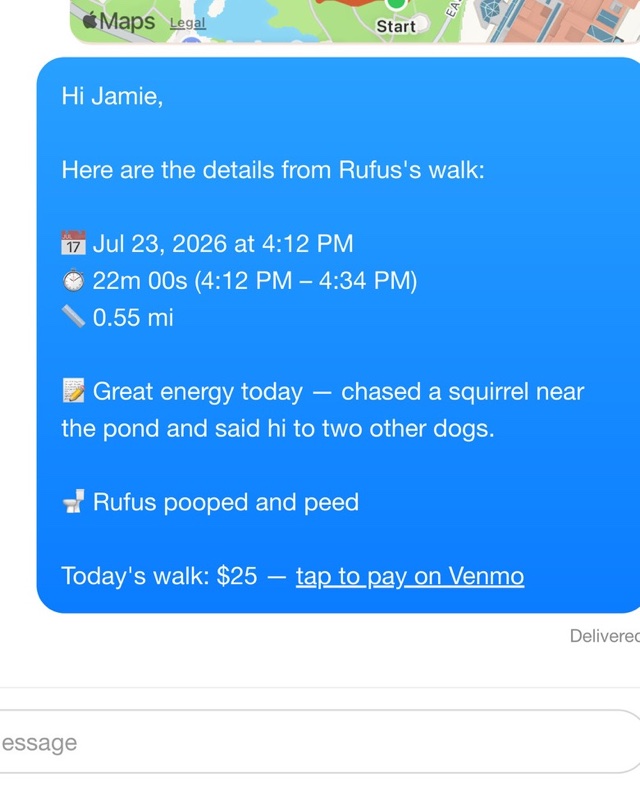
Onboarding asks for your Venmo, PayPal and Cash App usernames (Settings holds them afterwards), and they do exactly one job: they're how the app builds pay links that point at you. A recap text ends with "tap to pay on Venmo"; a recap email carries the same link; an invoice carries it as both a link and a QR code an owner can scan from paper.
The rule behind the switches: a provider that's off appears nowhere — no links, no buttons, no QR, no handle fields. Typing a handle during onboarding switches that provider on; switching one off later sticks.
Your handles never leave the phone except inside the links you choose to send.
Setting up later, or all at once? The Help tab (the ? in the top-right corner on the iPad and Mac) has How to Set Up Payment Requests: your usernames, then each owner's, then the screens below in miniature — on the iPhone, the iPad and the Mac alike.
The owner's handles aim them
Each owner's page can also hold their Venmo, PayPal and Cash App usernames — but these do a different job than yours, in two quiet ways:
- They pick the app. An owner's pay links use the first payment app that's switched on in your Settings and has that owner's handle on file — so the Venmo household gets Venmo links and the PayPal household gets PayPal links, without you choosing every time.
- They aim the request. When you Request Payment over Venmo, the owner's handle becomes the request's recipient — your Venmo opens already asking the right person.
Money always flows one direction: toward you. The owner's handles never appear as a payment destination — they route and address the asking, that's all.
Costs live on walks
There's no rate card in the app — each walk carries its own cost, set where you happen to be:
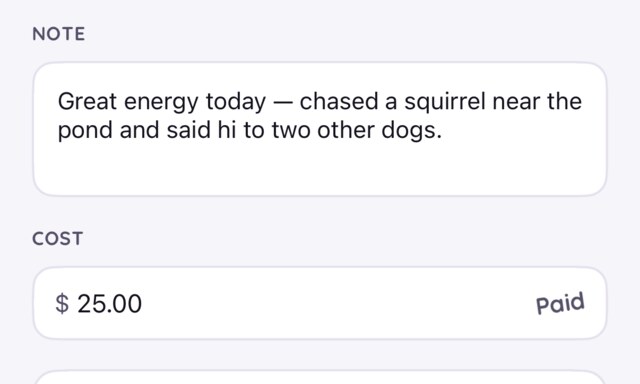
- On the walk's own page, in the Cost field under the note — the page is where a walk gets shaped, and sharing sends whatever's there.
- On the Share Walk screen, as you write the recap text or email — the cost becomes the pay link's amount in the same breath.
- At the desk — the Mac and iPad's walks table is made for the end-of-week pass where costs get fixed.
Both asking tools insist on honesty: a selected walk with no cost blocks the request or invoice until you give it one — an ask for the wrong amount is worse than a delayed one. And once a walk is on a live invoice, its billing facts lock until the invoice releases them.
Request Payment
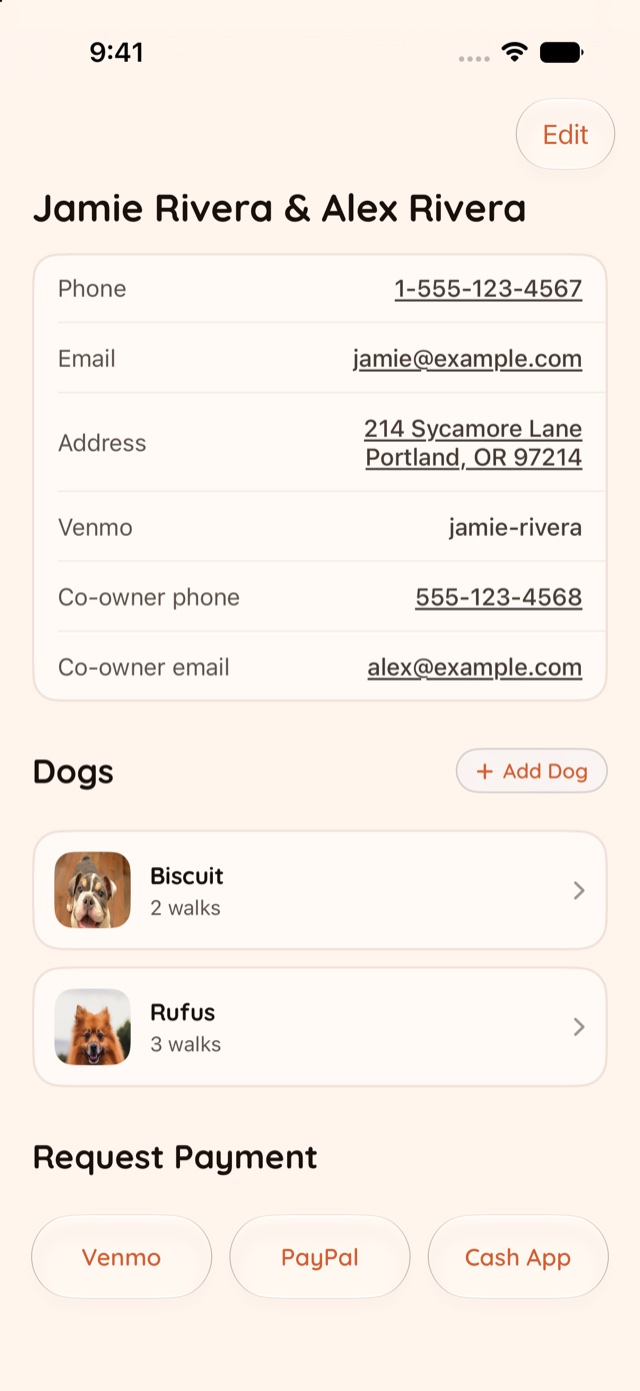
On an owner's page, the payment apps you've switched on appear as buttons under Request Payment. Tap one, pick the walks to include — the running total follows your selection — and the request opens in the payment app with the amount filled in.
The picked walks are stamped Requested on the spot, so the walk list remembers what's been asked for. Nothing else changes: no invoice, no locking, and the walks stay available for a real invoice later if you want one.
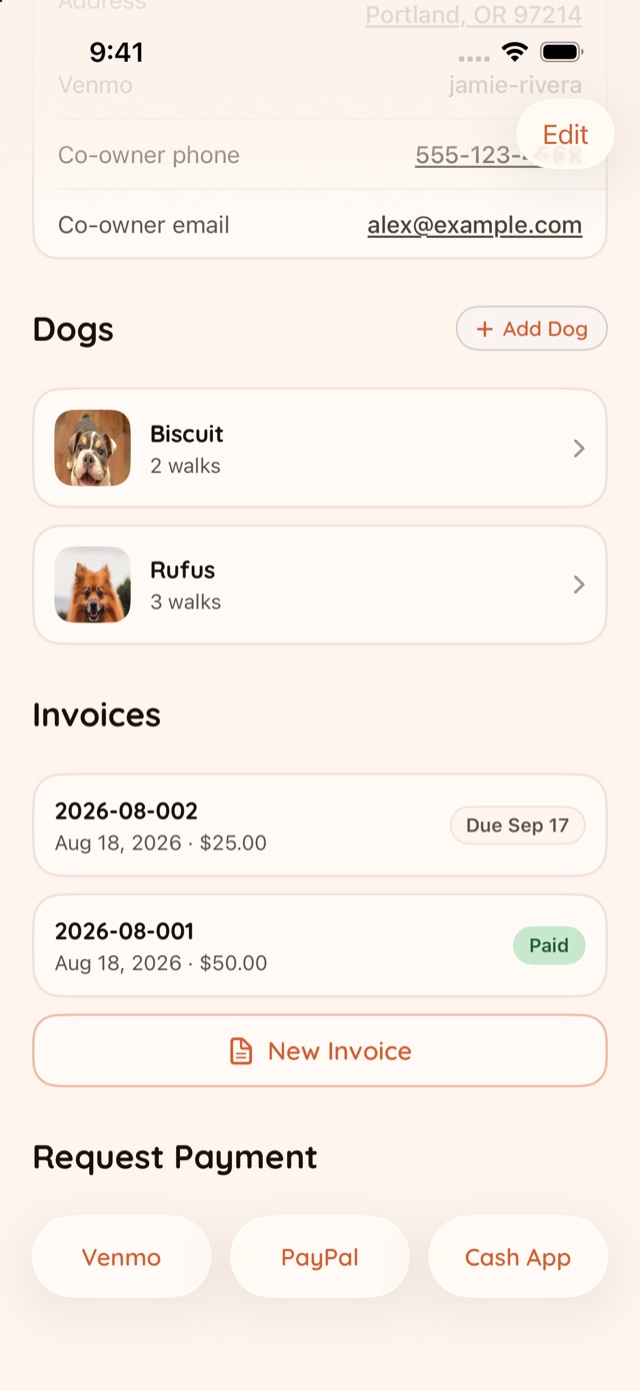
The owner's page wears whichever roads you use. With invoicing on, Invoices and Request Payment sit side by side at the page's end; switch Enable Invoicing off in Settings and the page goes straight from the dogs to Request Payment — the informal road, standing alone:
Invoices
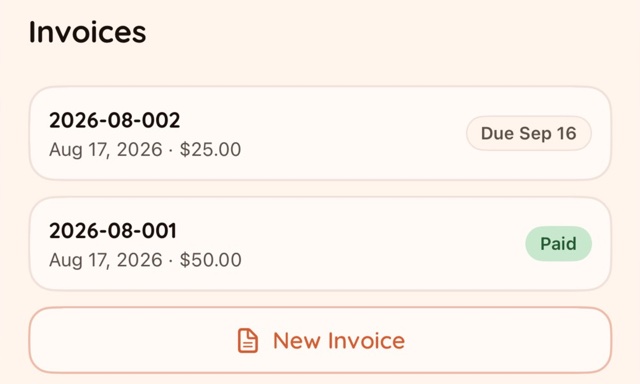
From an owner's page, New Invoice gathers their unbilled walks the same way — pick, total, done — but mints a numbered invoice from them. Send it as a PDF attachment or a formatted email (the Enable PDFs switch in Settings decides which), with your details at the top, the owner's address in the Bill To, each walk as a line, and a pay link plus QR code at the bottom.
Invoices carry a due date, the desk keeps Unbilled and Overdue lists watching them, and Mark as Paid turns the invoice into the receipt — its walks read Paid everywhere from then on.
Unrequested, Requested, Paid
Every finished walk with a cost tells you where its money stands, in one word:
- Unrequested — the walk is costed, and nobody's been asked yet.
- Requested — a payment request went out, or the walk is on an invoice that's still open.
- Paid — marked paid on the walk itself, or its invoice was marked paid.
While a walk is on a live invoice, the invoice speaks for it: issuing was the ask, and the invoice's paid stamp is the answer. Off an invoice, the walk's own stamps decide — Request Payment sets Requested, and the status label on the walk's page lets you settle the rest by hand. The label only appears once at least one payment app is switched on; a walker who ignores the payment features entirely never sees a status at all.
Handles live in onboarding and Settings — Getting set up walks through both. And as ever, the FAQ has the quick answers and Support is one email away.