 Freelance Dog Walks
Getting set up, step by step
Everything the app asks for when you first open it, and the two ways to add the dogs you walk — with what every field is for. This guide covers the iPhone app.
The four tabs
Once you're set up, the app lives on five tabs:
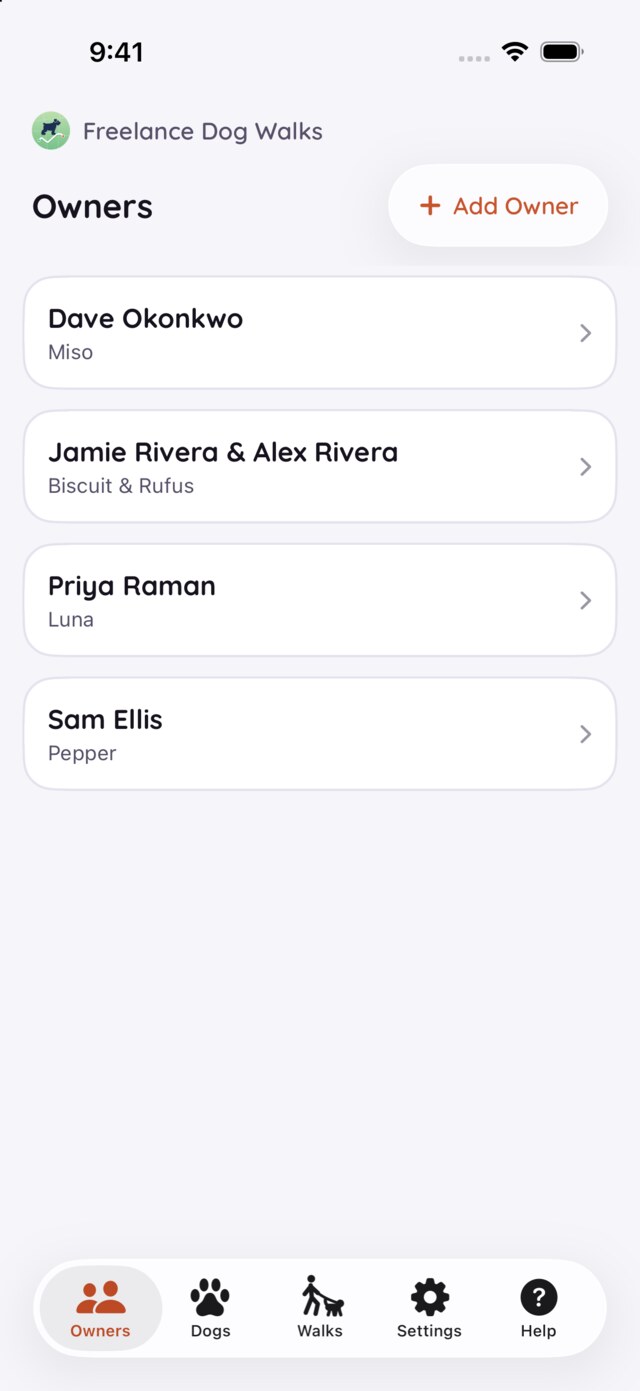
- Owners — the people you walk for, each with their dogs, contact details, invoices and payment requests.
- Dogs — every dog on your roster, each filed under its owner.
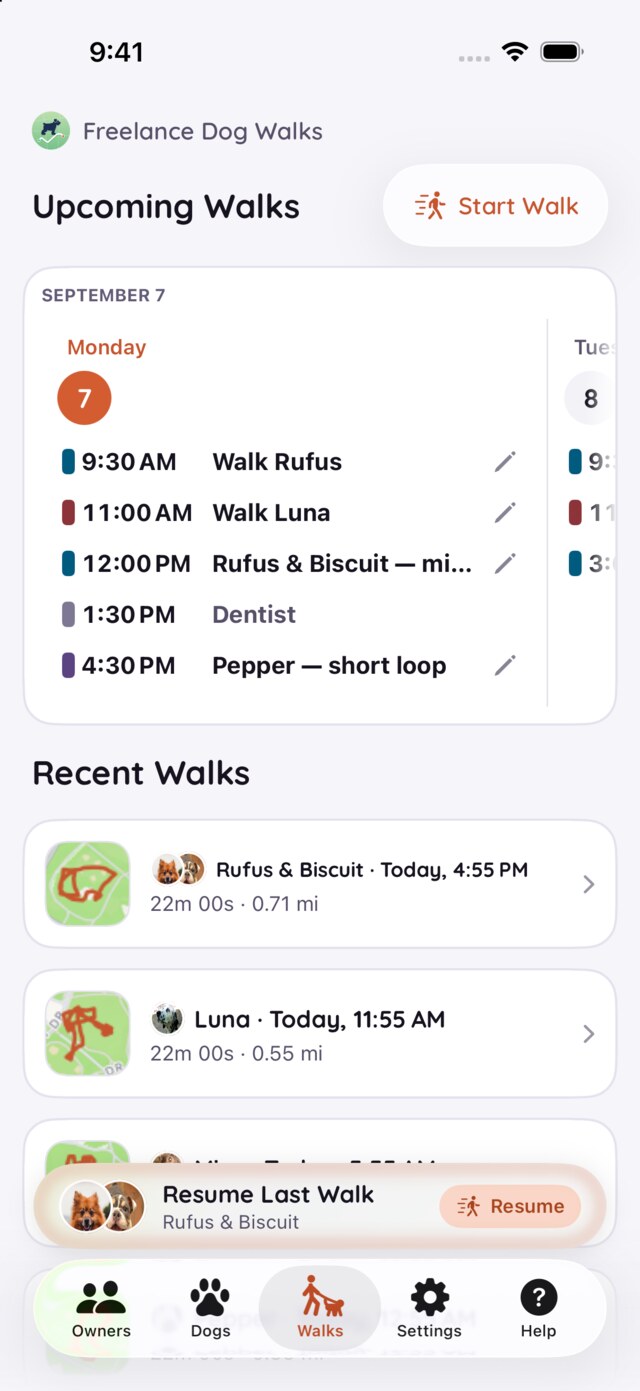
- Walks — upcoming bookings, recent walks, and the Start Walk button.
- Settings — your own details, invoicing, payment apps, appearance, and the option to re-run onboarding.
There's a fifth, Help: a few guided topics — re-running onboarding, a permissions check for location, camera and calendar, and a step-by-step setup for payment requests — then the way back to these guides and the FAQ. On the iPad and the Mac the same list sits behind a ? in the top-right corner.
The rest of this guide walks through the first two things you'll actually do: answering onboarding, and putting your owners and dogs in.
Onboarding, step by step
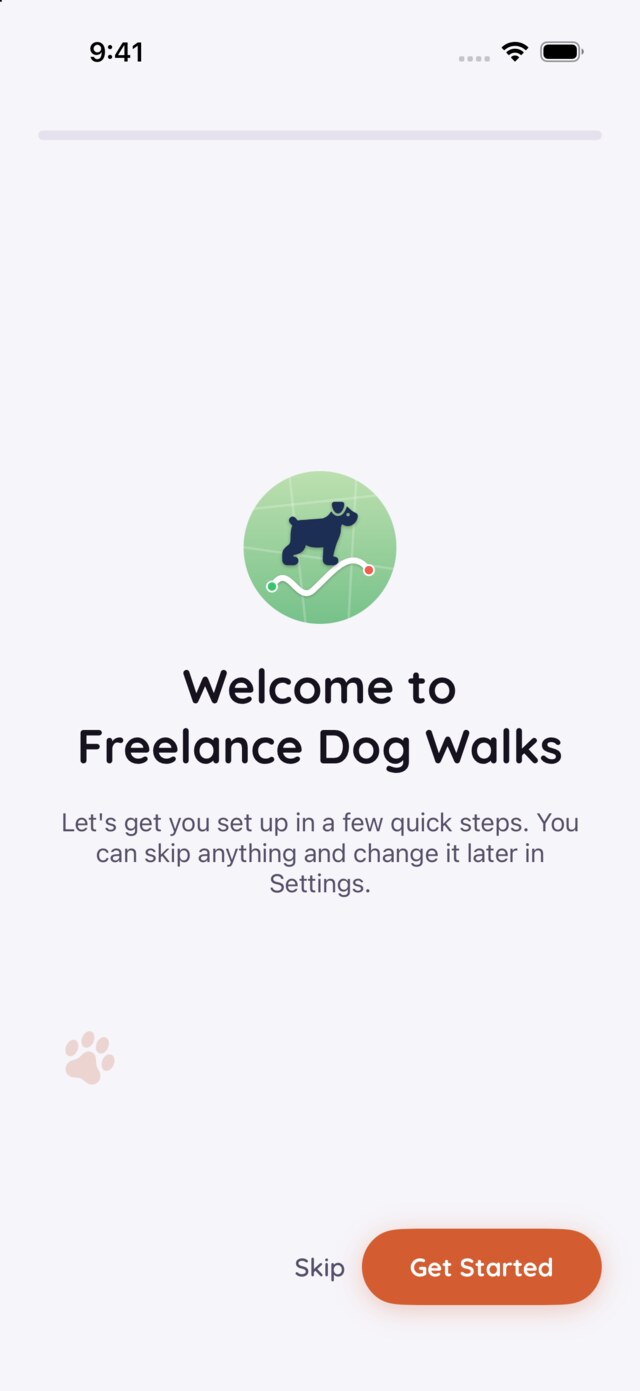
The first time the app opens it offers a short setup — a handful of screens, one question each, with a paw print joining the trail as you go. Nothing here is a commitment: every step has a Skip, and everything you answer (or don't) can be changed later in Settings.
On this first screen, Get Started begins the questions — and Skip here sets the whole setup aside. If you skip it, or want to change your answers later, the Help tab — or Settings — can re-run onboarding any time; it also re-checks the Location and Camera permissions, which makes it the first stop when something isn't working (see the FAQ).
About you
Your name, phone number and email address, on one screen. These aren't for an account — there is no account — they become your signature: when you email or text a walk recap to an owner, your details sign it, and when you send an invoice, they head it. Leave anything blank and the app simply signs with less. The business fields below them are just as optional: a business name takes over the app's header and heads your paperwork, a website becomes a tappable link on it, and a logo takes the place of the app's own — beside your signature on recaps and invoices.
Getting paid
Your Venmo, PayPal and Cash App usernames — whichever of them you actually use. Type a handle here and that app is switched on for payment requests: pay links can ride your recaps, and Request Payment on an owner's page can total up walks in one tap. These handles stay on your phone and only ever appear in things you choose to send. No handle, no problem — invoicing still works, and Settings can add them later.
Three permissions, each with a purpose
Next, the app asks iOS for the access it needs. Each one maps to a single feature, and each screen appears only if the permission isn't already granted:
- Location — draws your route while you walk and keeps the distance honest. Choose While Using the App and leave Precise Location on, or the map can only guess (more in the FAQ).
- Camera — lets you add photos to a walk while you're still out on it. The same photos are where dog portraits come from.
- Calendars — lets the app read the calendars you connect per owner, so booked walks line up in the app before they happen.
Pick a look
The one question that's purely taste: four palettes — warm, slate, meadow, or dusk — with light and dark as a separate choice. Tapping a swatch repaints the screen you're looking at, so you're choosing with your own eyes, not from thumbnails. Your widgets follow whatever you pick, and Settings can change it any time.
You're all set
That's the whole interview. The app opens on its tabs, and the next job is putting your crew in.
Adding your crew
One idea shapes everything here: dogs belong to owners. Contact details, an address, a calendar and invoices live with the person; each dog carries its own name, breed, birthday and notes. Change an owner's phone number once and it's right for every one of their dogs.
There are two doors in, and they meet in the middle:
- From the Dogs tab — quickest for one dog. The form can mint a new owner inline as you go.
- From the Owners tab — start with the household. Especially worth it when one home has more than one dog: enter the people once, then stack the dogs beneath them in the same form.
Add a dog from the Dogs tab
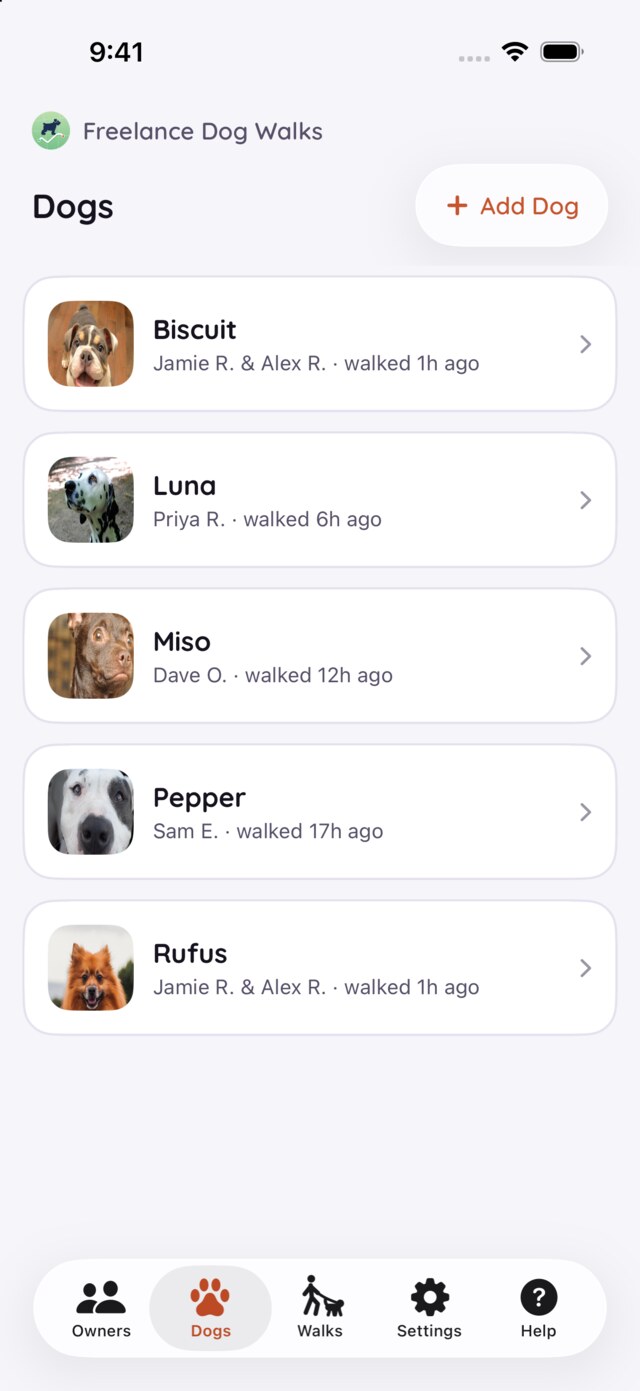
On the Dogs tab, tap + Add Dog. The form asks for the dog first, then who they belong to.
The dog's fields
- Name — the only thing a dog actually needs. Everything else can wait.
- Breed — shows on the dog's page, under their name.
- Birthday — three little menus for month, day and year, so a birthday can be as exact or as vague as what the owner told you. Filled in, it becomes the dog's age on their page.
- Notes — yours alone; owners never see them. Allergies, temperament, where the spare leash lives.
A dog's photo comes after saving: the app picks one from your walk photos and crops it to the dog's face, all on your device — or choose or take a particular shot from the dog's page.
Whose dog is this?
Below the fields sits the owner picker. If the person is already on your books, pick them and you're done. If not, choose New Owner… and the owner's essentials unfold right there in the same form — owner name, phone and email — plus Add Co-Owner for a second person in the household. One Save creates the dog and the owner together.
The inline version deliberately keeps to the essentials — address, payment handles and a calendar can be added later from the owner's page, so a walker mid-dog never faces the whole household form.
Or start from the Owners tab
On the Owners tab, add a new owner and you get the whole household form — the same dog fields as before, stacked under the people they belong to. This is the comfortable path when one home has several dogs.
The Owner section
- Name, phone, email — how recaps, texts and invoices reach them.
- Add Co-Owner — a second (or third) person with their own name, phone and email. Walk shares and invoices reach every person on file, so both halves of a household see the same recap. Later, editing the owner can promote a co-owner to primary — the household, dogs and walk history all stay put; only who answers the door changes.
The Dogs section
One set of dog fields to start, and Add another Dog stacks the next beneath it — from the second on they're numbered, each with a remove button, so a big household stays legible. Blank trailing sets are simply skipped on save.
Address
The street field is also the search: start typing and suggestions gather beneath it — tap one and the street, city, state and ZIP all fill themselves in. The unit or apartment line stays yours alone; a fill never touches it. The address heads the owner's invoices, and from their page one tap opens Apple Maps.
Calendar
Connect one of your calendars to this owner and their booked walks flow into the app's schedule — swipe through the days on the Walks tab, edit a booking where you see it, and start the next walk from the booking itself when it's minutes away.
What you end up with
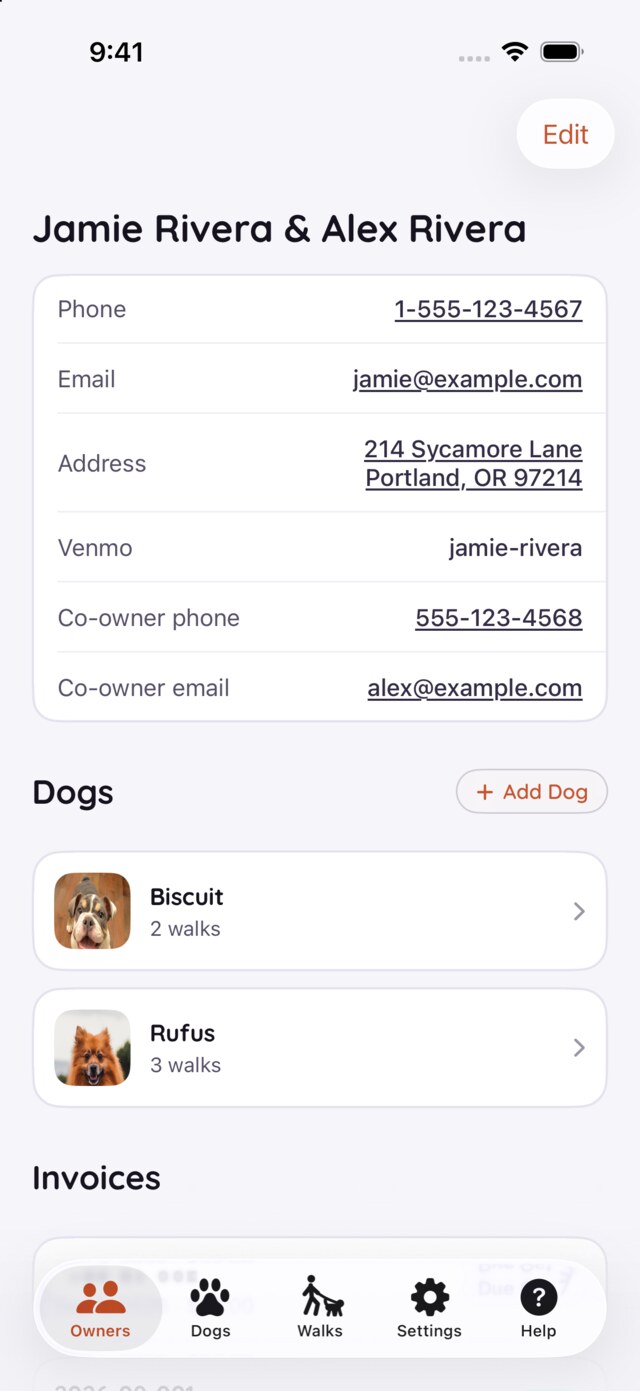
An owner's page gathers the household: contact details for every person, the address, their dogs, recent walks with what's owed, invoices, and Request Payment with the payment apps you switched on.
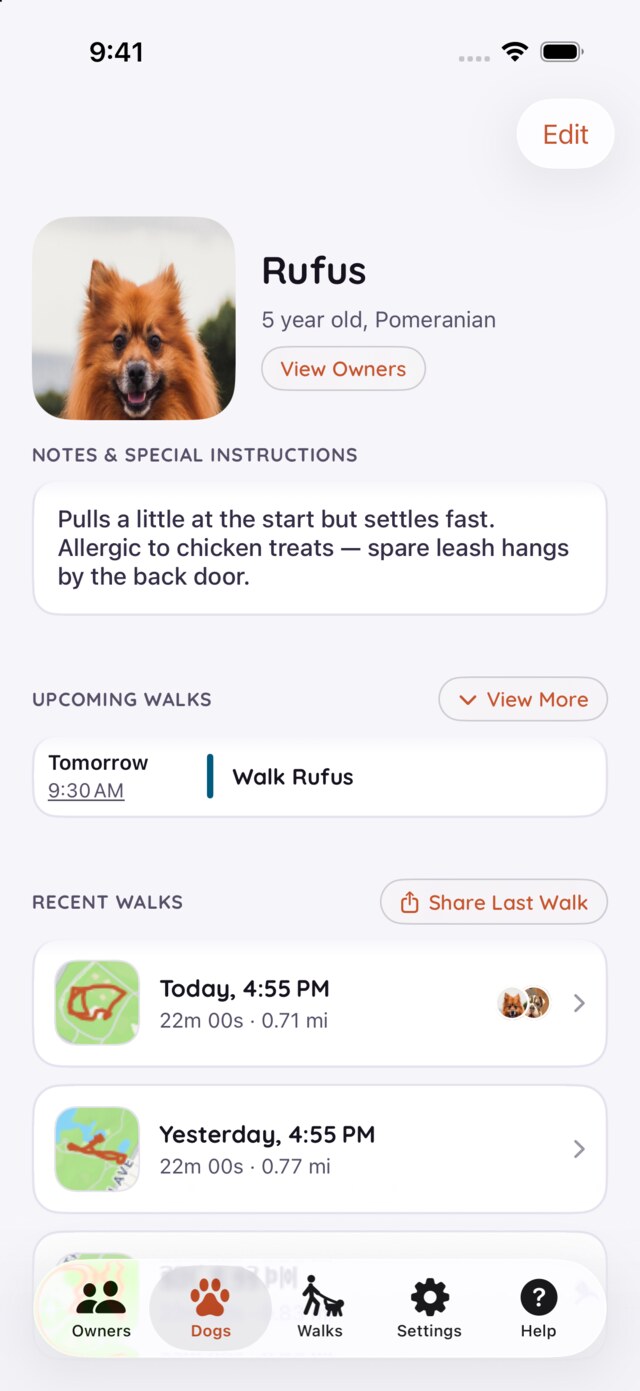
A dog's page leads with their photo, name, age and breed, keeps your notes where you'll see them, and lists upcoming and recent walks — with Share Last Walk one tap away.
Everything on both pages can be edited later — nothing you type at add-time is set in stone.
Stuck on something this page doesn't cover? The FAQ answers the common questions, and Support is one email away.