 Freelance Dog Walks
Scheduling, from calendars you already keep
The app doesn't ask you to retype your week. Each owner's bookings live in a calendar you connect once, your own appointments ride along in gray, and every booking can be edited right where you see it. This guide covers the iPhone app.
How it fits together
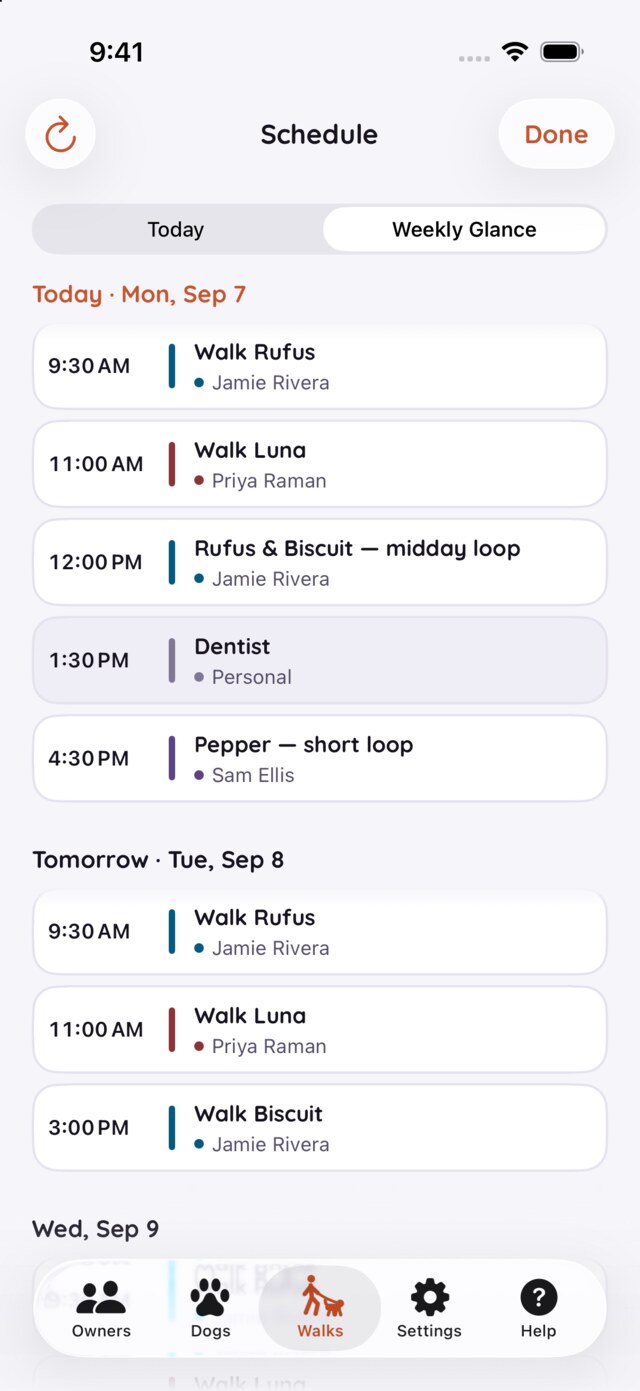
Two kinds of things appear on the schedule, and the colors keep them apart:
- Bookings — events from a calendar you've connected to an owner. Each wears the household's own tint, counts toward the day's dots, and can start a walk when its time comes.
- Your events — appointments from your personal calendars, shown in gray. The dentist, the school run: context, so you never book a walk across them. They never touch an owner's page, the dots, or Start Now.
Both arrive through calendars the phone already knows — iCloud and Google come through the same door, because your device's calendar accounts already merge them.
Turn on calendar access
The app never asks for calendar access on its own — reading is quiet, and only a deliberate step of yours triggers the ask. If access was never granted, or got switched off, two roads lead back:
- Re-run onboarding — in the app's Settings, choose Re-run onboarding experience. The calendar step appears whenever access isn't granted yet (steps you've already answered are skipped), and it asks in context, with the why on screen.
- iOS Settings — under Apps → Freelance Dog Walks → Calendars, grant Full Access. The schedule needs to read the events; editing writes them back.
Without access, the schedule simply shows less — nothing breaks, and connecting a calendar will ask at exactly the moment it needs to.
Connect an owner's calendar
Each owner can carry one connected calendar — the one their walks are booked in. Edit the owner (from their page) and choose a calendar in the Calendar section. The picker lists every calendar your device can write to, grouped by account — iCloud, Google, whichever are signed in. Subscribed, read-only calendars are deliberately missing: connecting one would promise edits that can't save.
Once connected, the owner's page reads Connected with the account's name, and every event in that calendar becomes a booking with the household's tint. The booking's title picks the dogs:
- A one-dog household books all its walks to that dog, whatever the title says.
- In a multi-dog household, a dog named in the title narrows it — "Walk Biscuit" means Biscuit, not the pack.
- No dog named means everyone: "Midday loop" walks the whole household.
Connections are per owner on purpose: each household's bookings stay theirs, on their calendar, and nothing needs re-typing into the app.
Weave in your own calendars
Your own life belongs on the schedule too — as context. In the app's Settings, the Schedule — Show for Context section lists every calendar on your device; check the personal ones and their events appear in gray beside the walks. Read-only calendars qualify here, because context is display-only — nothing is ever written to them.
Your picks sync over iCloud, so choosing on the Mac sets up the phone and the other way round — each device then shows whatever its own accounts can see.
Hide and show My Events
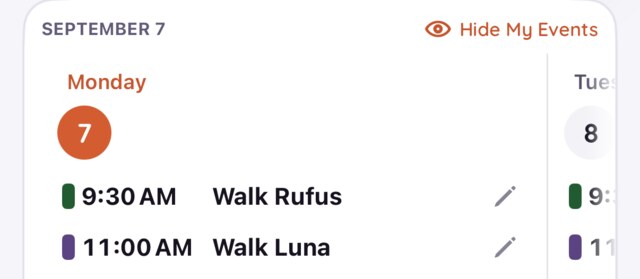
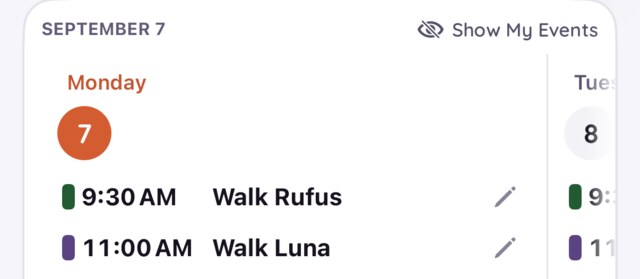
Once you've picked context calendars, the Upcoming Walks card grows a small eye in its corner. It hides the gray without unpicking anything — for the moments you want to see only the work.
Shown — your events ride along in gray
Hidden — walks only, one tap to bring them back
Tap a booking — every part does something
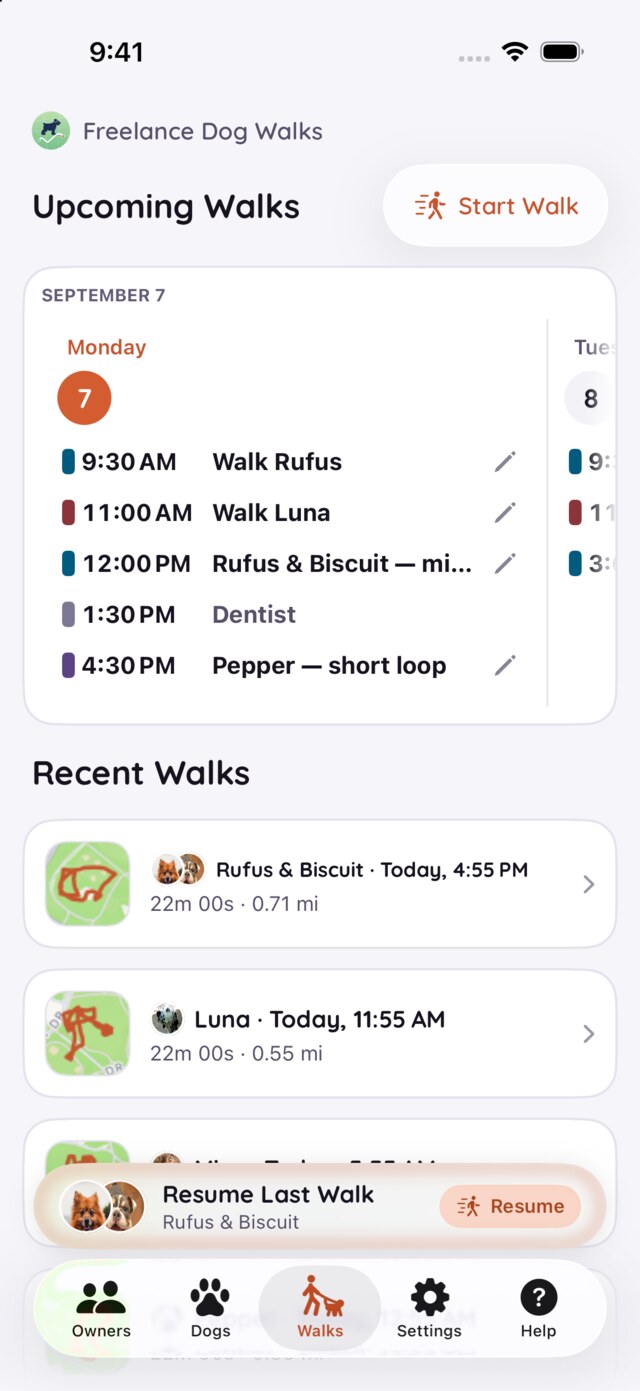
A day's tile lists its bookings as rows, and the row is not just a label:
- The colored bar is the household's tint — the same color that dog's walks wear everywhere.
- Tap the row (or its pencil) and the calendar editor opens right there — change the time, the title, the day — and saving writes straight back to the owner's calendar, so their copy updates too.
- When a booking is minutes away, it grows a Start chip: one tap, a quick confirmation of which dogs, and the walk is being tracked.
- Gray rows have no pencil and no chip — your own events are context, and the app leaves them alone.
If an edit can't start
Editing goes through your device's calendars, so once in a while the app has to decline — and it says exactly why:
Calendar Access Is Off
Editing writes through this device's calendars. Turn access on in Settings → Privacy & Security → Calendars, then try again.
Not on This Device Yet
This booking's calendar isn't in this device's calendar accounts. Add it with write access, and edits will sync straight back to the owner's copy.
Read-Only Calendar
Subscribed calendars can't be written to. Ask for the calendar to be shared with edit access — or make the change where the calendar lives.
New to the app? Getting set up, step by step starts from the very beginning. And as ever, the FAQ has the quick answers and Support is one email away.